
Why “good enough” digital security is getting quietly harder
Most security advice online is repetitive: use a password manager, enable two-factor authentication, don’t click suspicious links. That’s still true, but the threat landscape has shifted in subtle ways. Attackers increasingly rely on consent phishing (tricking you into approving a real login), SIM swap and carrier account takeovers, session-cookie theft, and long-tail identity leaks from data brokers — the unglamorous infrastructure of modern life.
This roundup focuses on underrated, high-leverage moves that don’t require you to become a security professional. Each item is designed to reduce risk in real-world situations: traveling, changing phones, using smart home devices, or running a side hustle.
Roundup: 13 practical security upgrades most people skip
1) Treat your email inbox like a “root account” — then harden it like one
Email is the recovery channel for almost everything: banking, social accounts, cloud storage, work tools, and your phone number. If an attacker gets your email, they can often reset everything else.
- Create a dedicated “vault email” used only for account recovery and financial services. Don’t use it for newsletters, shopping, or social media.
- Turn on the strongest MFA available (ideally hardware keys). Avoid SMS MFA for the vault email.
- Audit email forwarding rules and third-party app access monthly. Attackers love silent forwarding rules that exfiltrate receipts, codes, and reset links.
Actionable checklist: Verify your recovery email/phone, remove old devices from your email account, and print backup codes for offline storage.
2) Use passkeys — but don’t do it blindly
Passkeys are one of the biggest usability wins in security in years: they’re phishing-resistant when implemented properly because there’s no password to steal. Adoption is accelerating across major platforms. The key is to avoid getting locked out.
- Enable passkeys on your most targeted accounts first (email, Apple/Google/Microsoft account, password manager, banking if supported).
- Ensure you have at least two recovery paths: a second device, a recovery contact, or a hardware key fallback depending on the service.
- Know where your passkeys live (iCloud Keychain, Google Password Manager, 1Password, etc.). Switching ecosystems without planning can create friction.
For ongoing coverage of how passkeys are rolling out and what it means for everyday users, you can follow reporting at The Verge’s security and platform coverage, which often breaks down consumer-facing implications of new authentication changes.
3) Add a hardware security key to your “blast radius” accounts
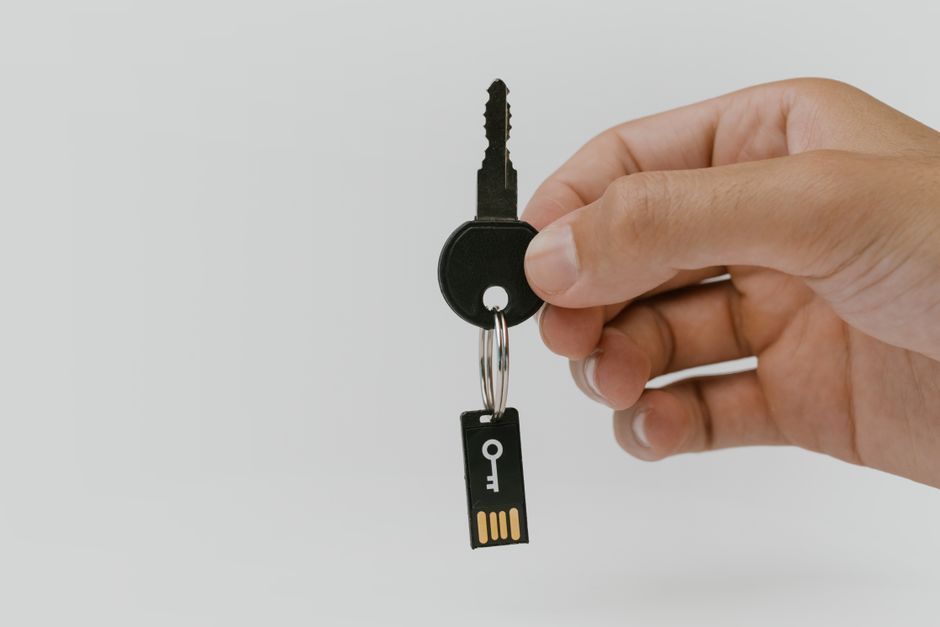
If you want one upgrade that dramatically reduces account takeover risk, hardware security keys (FIDO2/WebAuthn) are it. They mitigate phishing because the login is bound to the legitimate website. This is especially valuable for accounts that can reset other accounts.
- Prioritize: your primary email, Apple/Google/Microsoft account, password manager, and any admin accounts for websites you run.
- Buy two keys: one daily, one stored securely as a backup.
- Label and document where each key is registered. A simple spreadsheet (stored offline or in your password manager) prevents confusion later.
4) Stop SIM swaps by moving the “attack surface” away from your phone number
SMS-based codes are vulnerable because phone numbers can be hijacked through carrier support social engineering or account compromise. You can’t eliminate the risk entirely, but you can reduce dependence on your number.
- Use authenticator apps or passkeys instead of SMS wherever possible.
- Set a carrier account PIN and remove unnecessary account recovery options.
- Port-out protection (if your carrier supports it) can block unauthorized number transfers.
Real-world example: Many high-profile account takeovers begin with a phone number port, then email reset, then financial access. Decoupling your MFA from SMS breaks that chain.
5) Make “session hygiene” part of your monthly routine
Password changes don’t always kick attackers out. If someone steals session cookies (via malware or a compromised device), they may remain logged in even after you change the password.
- Log out of all devices from security settings for email and social accounts at least once a month.
- Review active sessions for unfamiliar locations/devices.
- Use separate browser profiles (or separate browsers) for banking vs. casual browsing to reduce cookie spillover.
6) Turn on “transaction alerts” and treat them like intrusion detection
Fast detection beats perfect prevention. Most banks and card issuers allow push notifications for purchases, transfers, and login attempts.
- Enable alerts for: card-not-present purchases, bank transfers, and new payees.
- Set thresholds to $0 when possible (notify for every transaction).
- Create a response playbook: freeze card in app, contact issuer, rotate passwords, check email rules.
Data point: In many fraud cases, minutes matter — early alerts can stop follow-on attempts (new payees, account takeovers, recurring charges).
7) Lock down your password manager — it’s your “single point of failure”
Password managers are still the right answer, but the way you secure the manager matters more than any individual password.
- Use a long, unique master password (ideally a passphrase of 4–6 random words).
- Enable MFA (preferably hardware keys).
- Run a weak-password audit and prioritize changing passwords for financial and email accounts.
- Store recovery codes offline (printed) and in a physically secure location.
8) Create a “disposable identity” for shopping and signups
Data leaks are common; your goal is to reduce linkage and limit how much a breach exposes.
- Use email aliases (or unique addresses) per merchant to identify who leaked your data.
- Use virtual cards when available to set merchant locks or spending limits.
- Keep your real date of birth off non-essential accounts; many services don’t need it.
Tip: If a specific alias starts receiving phishing, you can disable it without changing your primary email.
9) Reduce data broker exposure in 30 minutes
Data brokers aggregate addresses, phone numbers, relatives, and work history. That’s useful for scammers and social engineering. You can opt out of many brokers, but it’s time-consuming unless you take a systematic approach.
- Start with the top brokers that rank highly in search results for your name.
- Create a dedicated email alias just for opt-out requests.
- Set a calendar reminder to re-check quarterly; listings can reappear.
Practical outcome: Less accurate public data makes impersonation and “help desk” social engineering harder.
10) Use DNS filtering to block junk at the network level
Browser extensions help, but DNS-level filtering can reduce exposure across devices (including smart TVs and tablets) by blocking known malicious domains.
- Enable a reputable filtered DNS on your router or device settings.
- Use separate Wi‑Fi networks (or guest network) for IoT gadgets.
- Test for breakage (some services may need allowlisting).
Example: If a phishing domain is blocked before the page loads, accidental taps become non-events.
11) Audit your smartphone’s “quiet permissions”
Phones are now the authentication hub, wallet, camera, and microphone. Small permission decisions add up.
- Review app permissions quarterly: location, contacts, photos, microphone, Bluetooth.
- Disable ad ID tracking and limit background refresh for apps that don’t need it.
- Remove old authentication apps or VPN profiles you no longer use.
Tip: If an app’s core function doesn’t require contacts or always-on location, deny it by default.
12) Make backups “boring but real”: the 3-2-1 rule for regular people
Ransomware isn’t just an enterprise issue. Stolen laptops, corrupted drives, and accidental deletions happen to everyone.
- 3 copies of important data (primary + two backups)
- 2 different media (cloud + external drive)
- 1 offsite (cloud or a drive stored away from home)
Actionable tip: Keep one external drive disconnected except during backup. An always-connected drive can be encrypted by malware along with your computer.
13) Run a “break glass” drill once per year
Most people don’t know what they’d do if they lost their phone, got locked out of email, or saw unauthorized bank activity. A short drill turns panic into a checklist.
- Write down: your critical accounts, recovery methods, and support numbers.
- Test recovery on one non-critical account to make sure your phone number/email are current.
- Confirm family access to emergency contacts, device PINs (if appropriate), and backup locations.
Outcome: You reduce downtime and the likelihood you’ll make risky decisions under stress (like disabling MFA to regain access).
Quick-start plan (do this in one weekend)
- Saturday (60–90 minutes): Harden email (MFA, recovery, sessions), then enable transaction alerts.
- Saturday (30 minutes): Add passkeys to your primary accounts and confirm you have a second recovery method.
- Sunday (60 minutes): Set up one offline backup + one cloud backup and verify you can restore a file.
- Sunday (30 minutes): DNS filtering + smartphone permission audit.
Conclusion: the goal isn’t paranoia — it’s resilience
Modern digital security is less about building an impenetrable wall and more about shrinking your attack surface, detecting issues early, and recovering quickly. The upgrades above are intentionally unflashy: account recovery hygiene, session checks, network-level blocking, and a real backup strategy. But these are the moves that consistently prevent the most common “I thought I was careful” disasters — and they scale with you as your digital life grows.
If you implement even five of the thirteen, you’ll meaningfully reduce the odds that one compromised login, one stolen phone, or one convincing phishing email turns into a full account takeover.