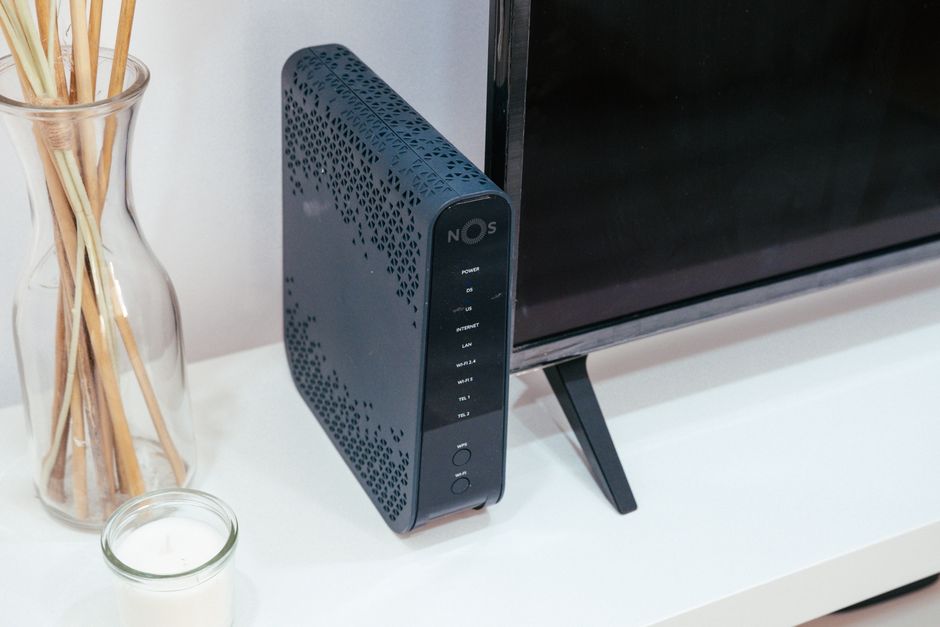

Your home internet probably isn’t “slow” — it’s just getting tripped up by modern reality: video calls, cloud backups, smart home gadgets, 4K streaming, game downloads, and the occasional neighbor blasting their own Wi‑Fi on the same channels. The good news: you don’t need a full networking degree or a rack of enterprise gear to make things dramatically better.
This roundup collects practical, specific upgrades and habits that improve real-world performance (not just speed-test bragging rights). Pick the ones that match your setup and budget, and you’ll notice the difference fast.
1) Stop chasing “more Mbps” and start measuring the right thing: latency + consistency
Most people test speed once and call it a day. But jitter (variation in latency) is what makes Zoom freeze and multiplayer games rubber-band. A “300 Mbps” plan with unstable latency can feel worse than a steady “100 Mbps.”
- Actionable check: run a bufferbloat test (search “bufferbloat test” and use any reputable tool) to see if latency spikes under load.
- Quick fix: enable QoS / Smart Queue Management (SQM) in your router if available. On many routers it’s called “Adaptive QoS,” “Smart Queues,” or “Gaming Mode.”
- Real-world result: people often see latency under load drop from triple digits to tens of ms — which is the difference between “everyone sounds like robots” and “it just works.”
2) Audit your Wi‑Fi environment like you’re debugging a mystery novel
Wi‑Fi is basically polite radio chaos. Your router may be competing with neighbors, microwaves, baby monitors, and even thick walls. Before buying anything, map the problem.
- Actionable tip: walk around with a Wi‑Fi analyzer app and note where signal drops below about -67 dBm (a common threshold for stable video calls).
- Look for patterns: dead zones near kitchens (appliances), signal crashes after a wall (metal studs), or 2.4 GHz congestion (tons of overlapping networks).
- Small change, big win: move the router higher and more central. Even shifting it a few feet away from a TV cabinet can improve coverage.
3) Upgrade your router placement, not your router (first)
This is the least glamorous upgrade and often the most effective. Routers tucked in corners behind furniture end up screaming into a wall.
- Put it out in the open, chest-height or higher.
- Avoid placing it next to large metal objects, aquariums, or inside a closed cabinet.
- If you have external antennas, aim two vertically and one horizontally (helps cover devices held in different orientations).
Example: In a typical apartment, relocating a router from a TV console to a hallway shelf can improve back-bedroom performance enough to eliminate a range extender entirely.
4) If you’re using a range extender, consider “wired backhaul” instead
Classic Wi‑Fi extenders often cut throughput because they have to receive and retransmit on the same radio. If you can connect an access point via Ethernet, you get the best of both worlds: full speed + better coverage.
- Best option: run Ethernet to an access point (even a cheap one).
- If running cable is impossible: consider MoCA (network over coax) if your home has coax outlets. It’s often far more stable than powerline adapters.
- Mesh systems: choose mesh that supports wired backhaul so nodes don’t rely on wireless hops.
5) Create a “boring but unstoppable” guest network for IoT
Smart plugs, bulbs, and random “smart” gadgets don’t need to live on the same network as your laptops and NAS. Separating them can improve both performance and security.
- Actionable setup: create a guest SSID for IoT devices and disable “guest access to local network” if your router offers that toggle.
- Why it helps performance: some IoT devices are chatty and can cause extra multicast/broadcast traffic that drags down Wi‑Fi airtime efficiency.
- Bonus: if a cheap camera has weak security, it’s isolated from your main devices.
6) Turn on WPA3 if you can, but don’t break your older devices
WPA3 improves security, but some older gadgets can’t connect. The sweet spot is often “WPA2/WPA3 mixed mode.”
- Use WPA3 (or mixed) on your primary network.
- Keep the IoT/guest network on WPA2 if needed for compatibility.
- Avoid WEP/WPA (original) entirely — those are effectively obsolete.
7) Use 5 GHz (and 6 GHz if you have it) strategically
2.4 GHz travels farther but gets crowded and is slower. 5 GHz is faster and cleaner but has shorter range. 6 GHz (Wi‑Fi 6E/7) can be amazing at close range with far less congestion — if your devices support it.
- Actionable rule: phones/laptops/TVs = prefer 5 GHz or 6 GHz; IoT gadgets = 2.4 GHz (many only support it anyway).
- Pro move: split SSIDs by band (e.g., Home-5G, Home-2G) if your devices keep clinging to 2.4 GHz.
- Real-world note: in dense areas, 5 GHz can outperform 2.4 GHz dramatically because it has more non-overlapping channels.
8) Adopt “scheduled heavy tasks” to avoid peak-time pain
One of the simplest ways to make your network feel faster is to stop doing everything at once. Cloud photo sync, game updates, OS updates, and backups can quietly saturate upload bandwidth — and upload is the usual bottleneck.
- Schedule backups overnight.
- Set game downloads to off-peak hours.
- If your router supports it, cap bandwidth per device (especially for always-on boxes like a media server).
Example: If your upload is 10–20 Mbps (common on older cable plans), a single laptop backup can make video calls stutter for everyone. Scheduling that backup after midnight can “fix” the problem without buying anything.
9) Enable automatic router updates (or at least check quarterly)
Router firmware updates aren’t just about new features — they patch security bugs and can improve stability. Many people never update their router after installation.
- Actionable habit: set a calendar reminder every 3 months to check for updates if auto-update isn’t available.
- Update the router first, then update mesh nodes/access points.
- After updating, reboot the modem too (it can clear weird connection states).
10) Replace the single worst cable in your life (yes, that one)
It’s wild how often a network problem is actually a bad Ethernet cable, a loose coax connector, or an ancient splitter.
- Swap any suspicious Ethernet cable with a known-good Cat5e or Cat6 cable.
- Check coax splitters: old splitters can introduce signal loss that hurts modem stability.
- If your modem logs show frequent disconnects, ask your ISP to check line quality — it’s not always your router.
Data point: even a small amount of packet loss (1–2%) can wreck real-time apps. A flaky cable can create packet loss without obviously “dropping” the internet.
11) Consider a modern mesh system only after you’ve done the basics
Mesh is great when it’s the right tool: large homes, tricky layouts, or multiple floors. But it’s not magic, and it can be overkill if placement and channel issues are the real culprit.
- Look for: tri-band systems (dedicated backhaul) or any mesh that supports wired backhaul.
- Wi‑Fi 6 vs 6E vs 7: if most of your devices are older, Wi‑Fi 6 is often enough. If you live in a crowded area and have newer devices, 6E/7 can shine.
- Reality check: you’ll still need good node placement; a mesh node in a dead zone won’t magically relay a strong signal.
For ongoing coverage of home networking gear, Wi‑Fi standards, and real-world router tests, it’s worth skimming The Verge’s tech coverage when you’re comparing hardware or trying to understand what the latest “Wi‑Fi 7” hype actually changes day-to-day.
Quick “Do This Tonight” Checklist
- Move your router to a central, elevated, open spot.
- Split SSIDs or force key devices onto 5 GHz.
- Enable QoS/SQM if your router offers it.
- Create an IoT/guest network and move smart gadgets onto it.
- Schedule backups and big downloads for overnight.
- Check firmware updates and reboot modem + router.
Conclusion: Make your network boring (in the best way)
The best home network is the one you never think about. Instead of buying the fanciest router and hoping for miracles, start with the upgrades that improve consistency: better placement, smarter band usage, separating devices, and controlling latency under load. Once you’ve nailed the basics, then (and only then) spend money on mesh or new hardware with a clear goal in mind.
If you want, tell me your home size, ISP speed (especially upload), and where dead zones happen — and I can suggest the fastest combination of upgrades for your specific layout.